Getting started
Copy Template
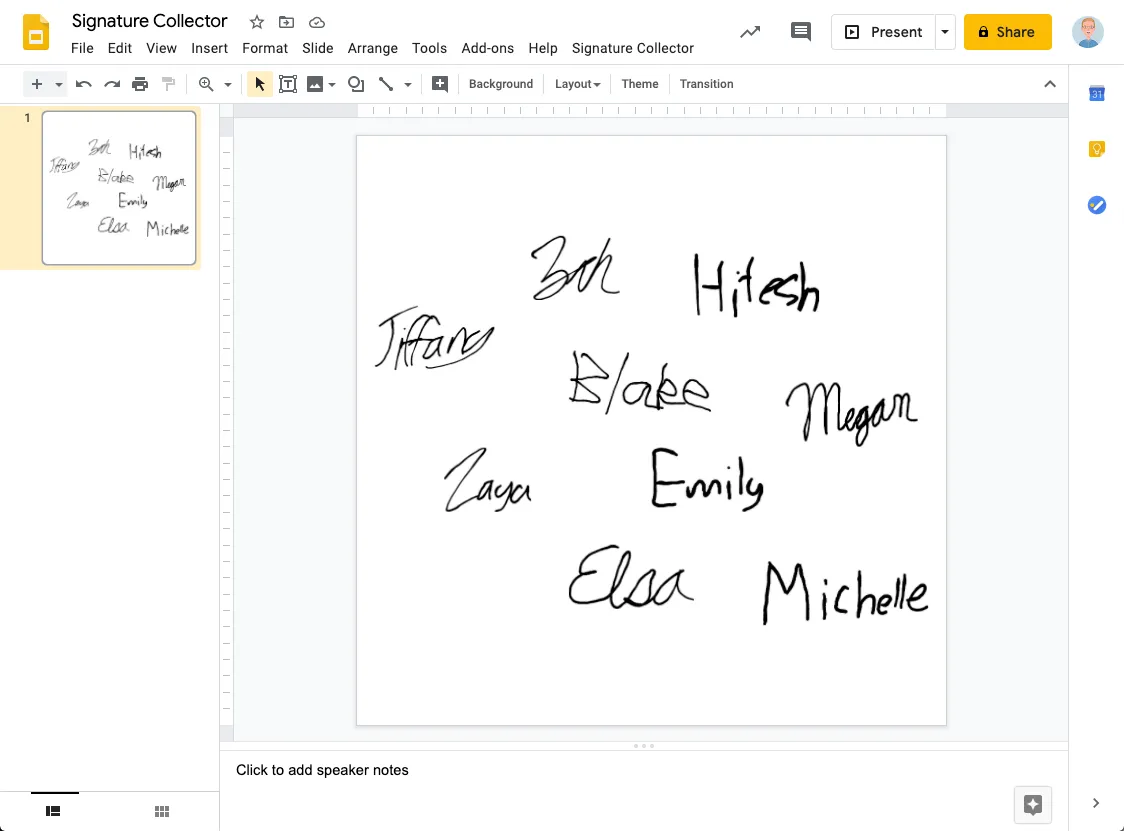
Make a copy of the template by clicking the blue Use Template button in the top right. You can delete all the instructions and content from the slide.
The default size of the page is 18" by 18". If necessary, go to File > Page Setup to change the size of the template.
Publish Form
This is a one-time process to get a link you can send to people to collect their signatures. You will be working in the Apps Script code editor, but you will not need to change any code.
-
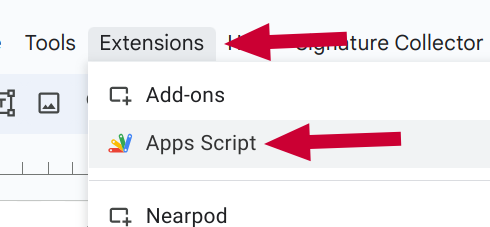
On the menu bar, go to Extensions -> Apps Script
-
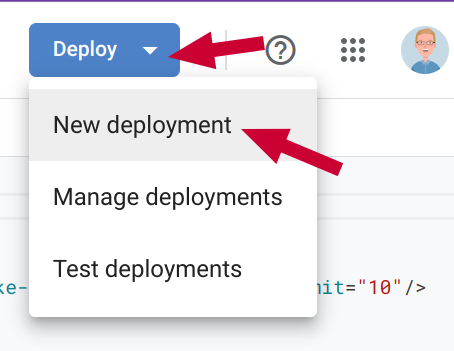
In the top right, click Deploy -> New deployment
-
In the box that pops up, double-check the values match the ones listed below.
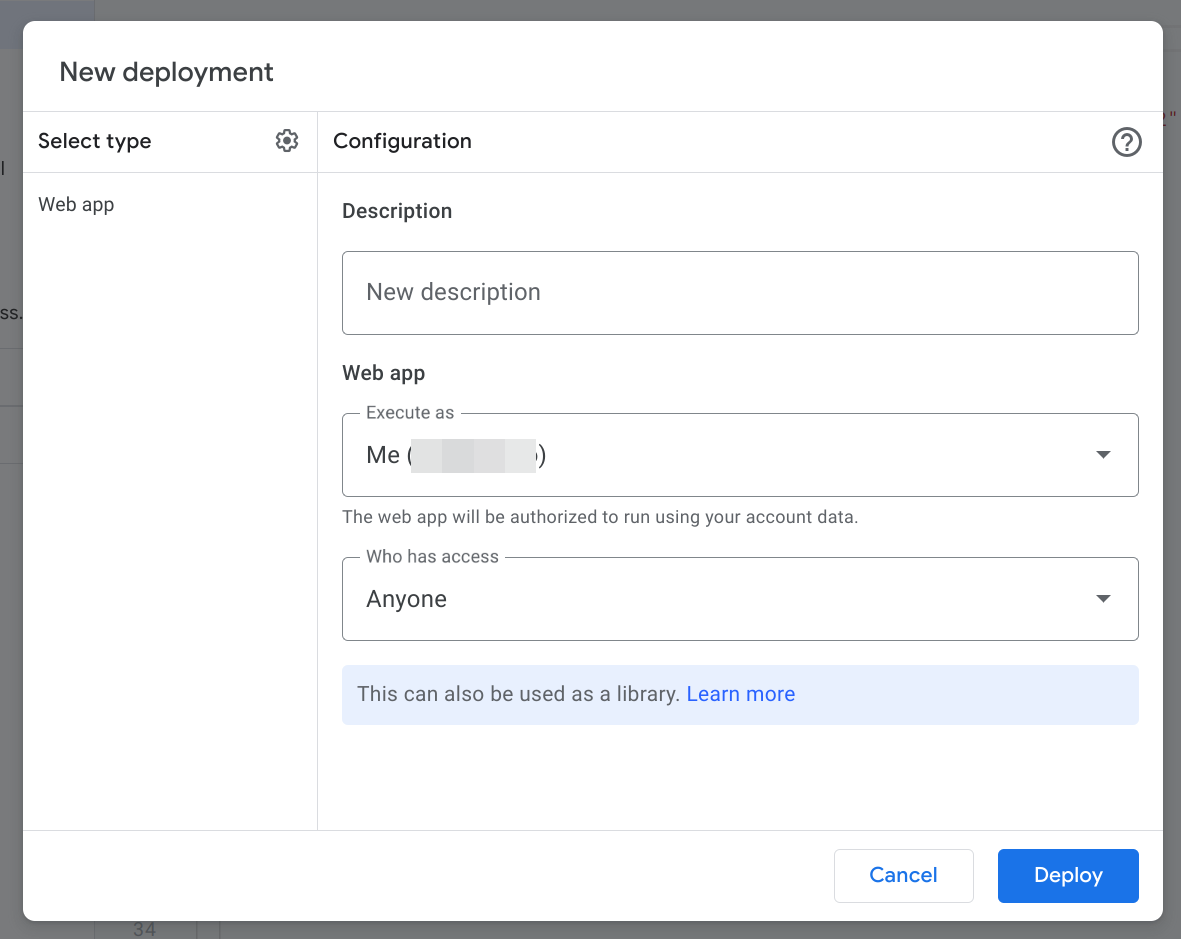
Field Value Select type Web app Description leave blank Execute as Me [your email address] Who has access Anyone
Who has access
This controls who can submit a signature, not who can see the submitted signatures. You can change the value to Anyone within [your organization] to limit access. However, this mode sometimes prevents people who are signed into multiple accounts from accessing the form.- Click Deploy
Authorize access
Click Authorize access and follow the prompts to grant the necessary permissions for the add-on to run. No data is sent to me or any third parties. See the privacy page for more information.
This app isn't verified
When you attempt to give the add-on permission to run for the first time, you may see a scary-looking screen that says "This app isn't verified". This just means it has not been submitted to Google for review. To bypass this message, click Advanced and then Go to Signature Collector (unsafe).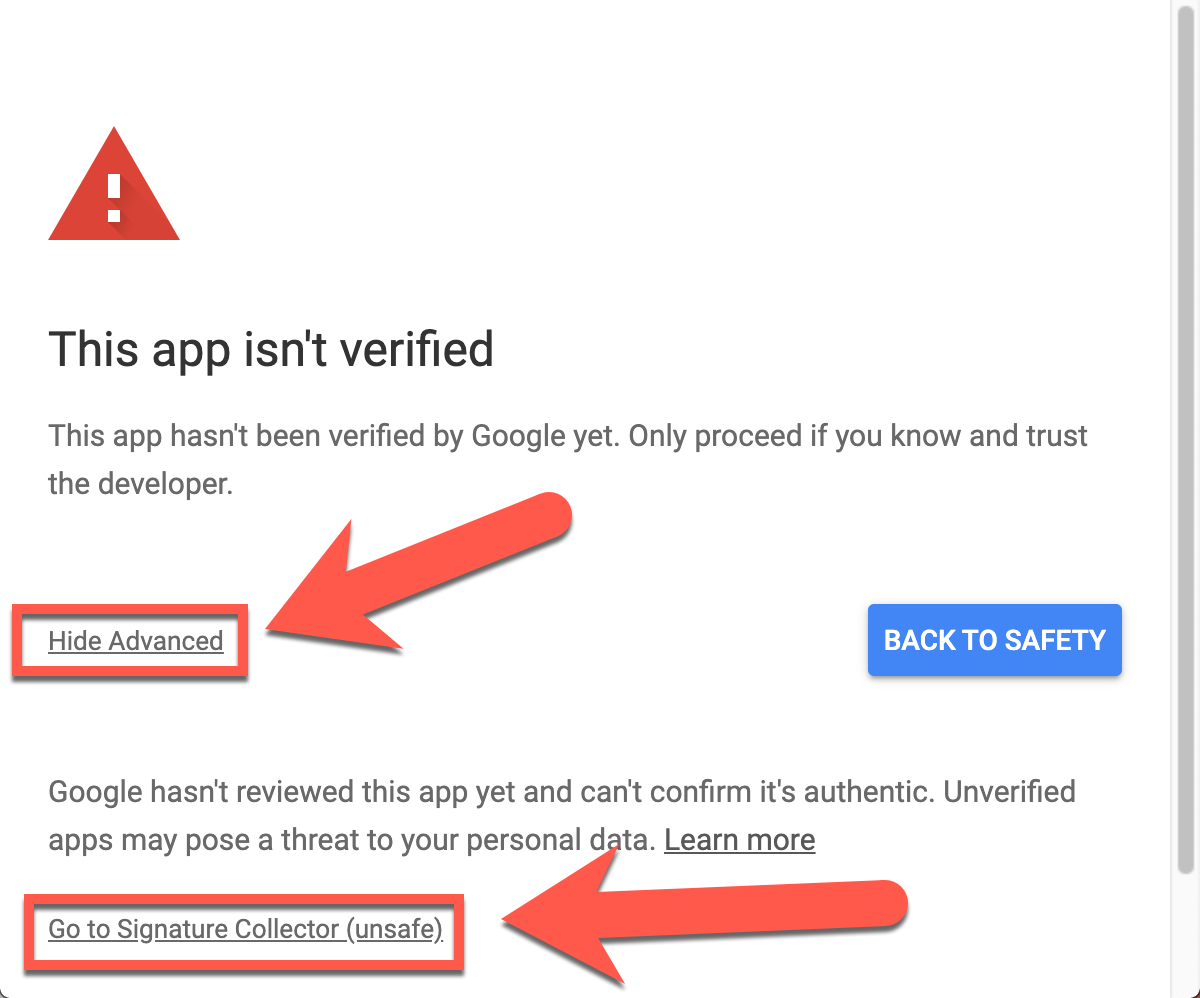
Test form
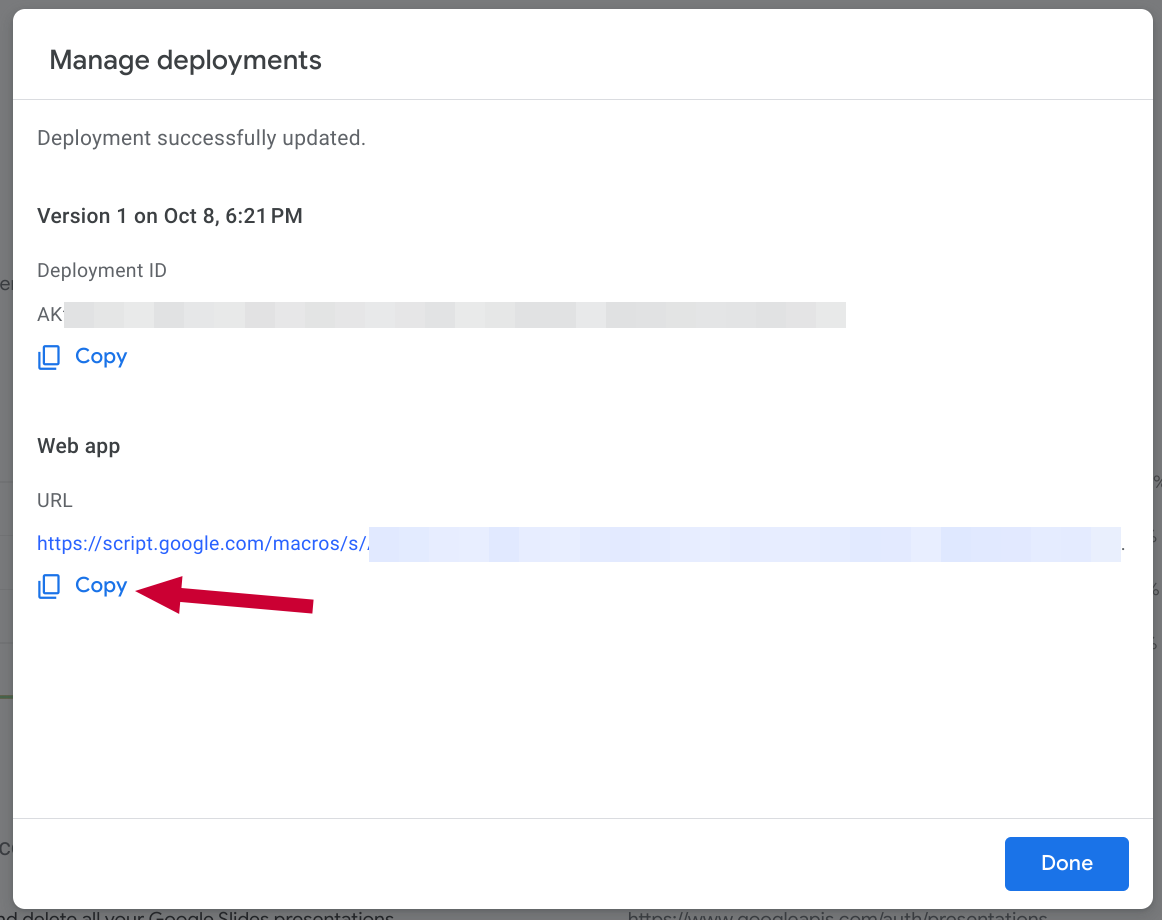
After you authorize the add-on, copy the Web app URL.
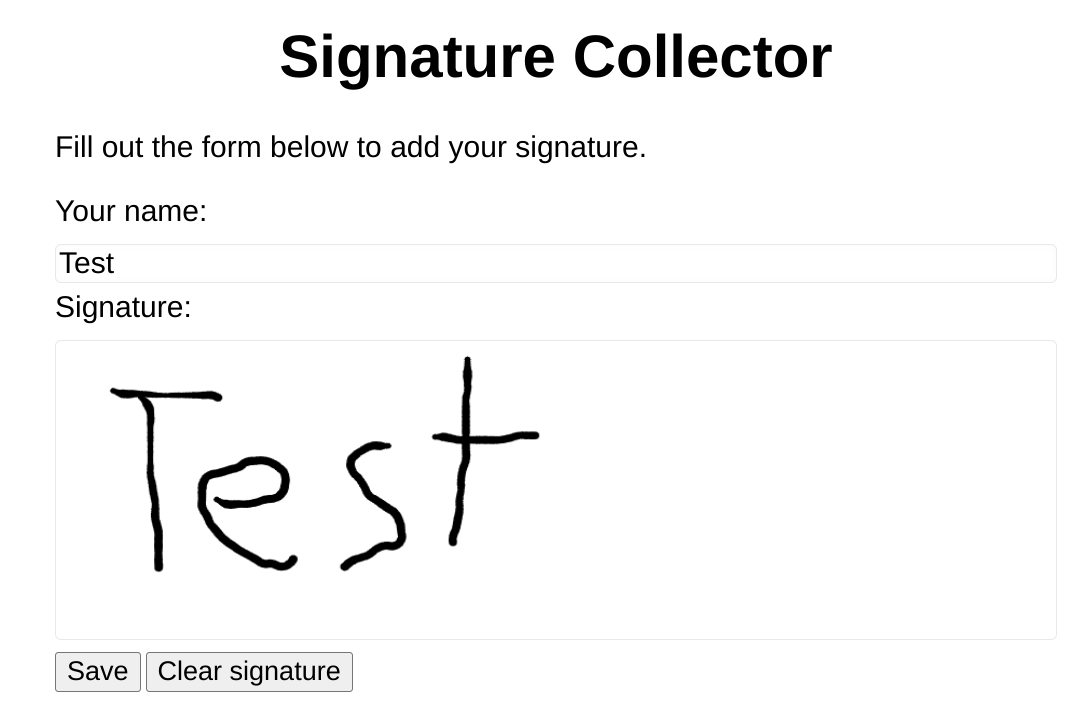
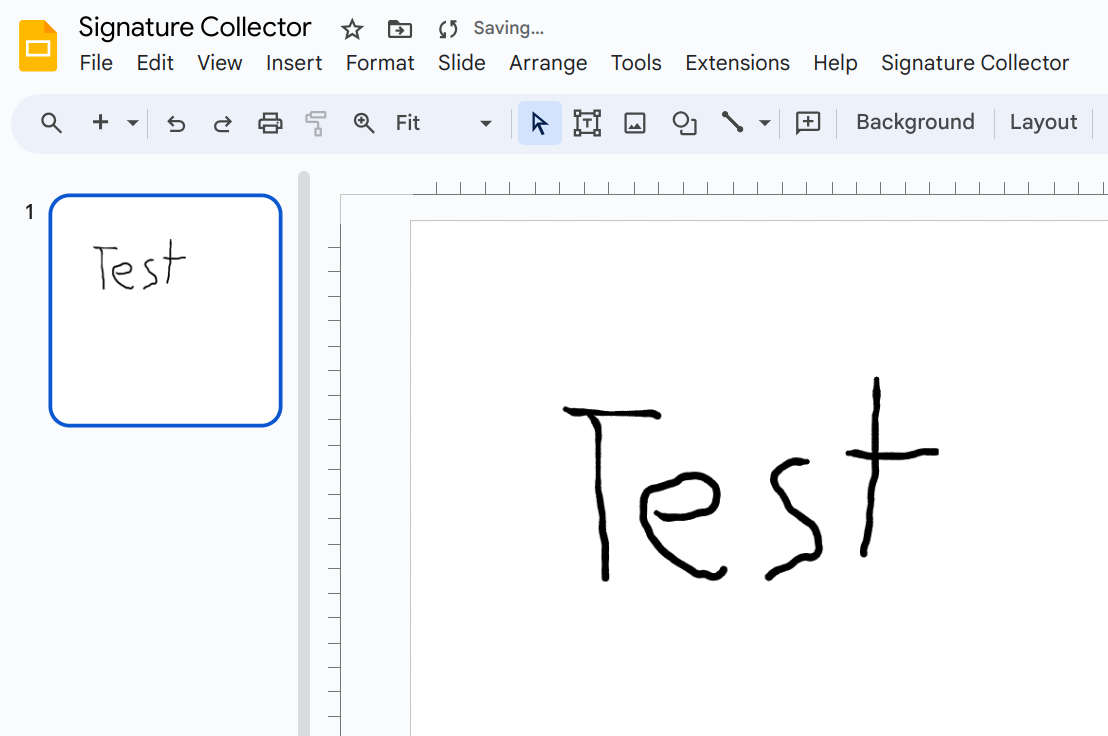
You can test your form by visiting the URL in a new browser window and submitting a signature. After you click "save", the signature should appear in your slideshow.
Share form
If the test worked, you can share the URL you copied with anyone you need to collect a signature from.
Tip
If you lose the form URL, you can get it back by re-opening the Apps Script editor from Google Slides (Extensions -> Apps Script) and choosing Deploy -> Manage deployments. Be sure to copy the Web app URL.