Customizing Submission Form
The Signature Collector can be customized via its settings panel. You can access the panel from the Slides template by going to Extensions -> Signature Collector -> Settings.
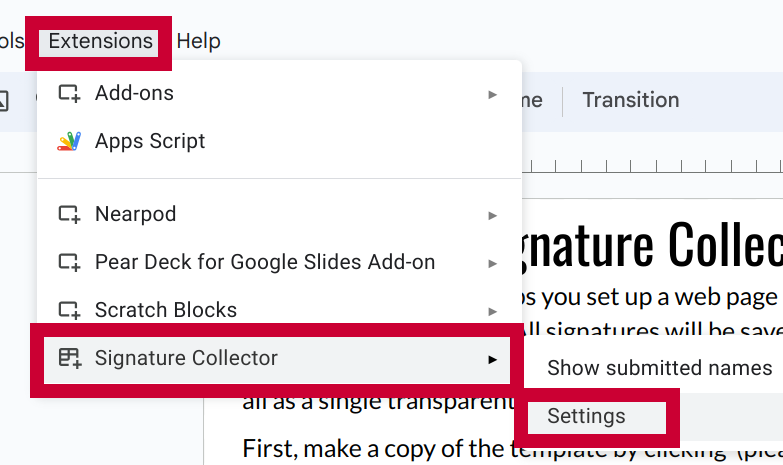
Settings
You can customize the following settings. Be sure to click Save settings after making changes.
| Setting | Description |
|---|---|
| Text for signature page | The text that displays above the box for the user's signature on the submission form |
| Text for thank you page | The text that displays after the user successfully submits their signature on the form. |
| Text for closed page | The text that is displayed in place of the form when signature collection is disabled |
| Enable signature collection | When checked, the form allows new signatures to be submitted. When unchecked, it displays the Text for closed page. |